Request a Quote button for WooCommerce
Put a quote button on your product and cart pages, keep Add to Cart or replace it, and handle every request inside WordPress.
Free, unlimited quotes. No account needed.
Where the button appears
Two built-in positions, both switchable, plus a shortcode for anywhere else.
-
1
On the product page
Sits with Add to Cart, so a buyer who wants a price instead of a checkout has somewhere obvious to go. Turn it off per store from the settings screen.
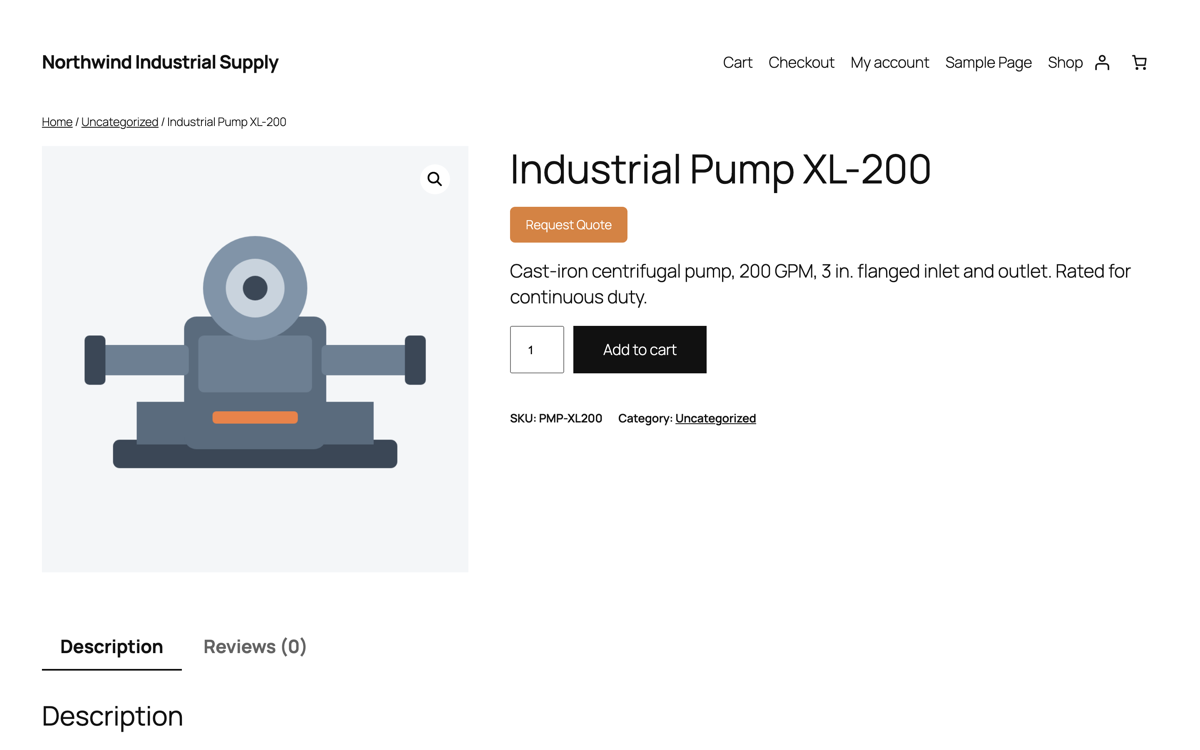
Product page -
2
On the cart page
For buyers who have built a basket and want the whole thing quoted. Works with the WooCommerce cart block and the classic cart.
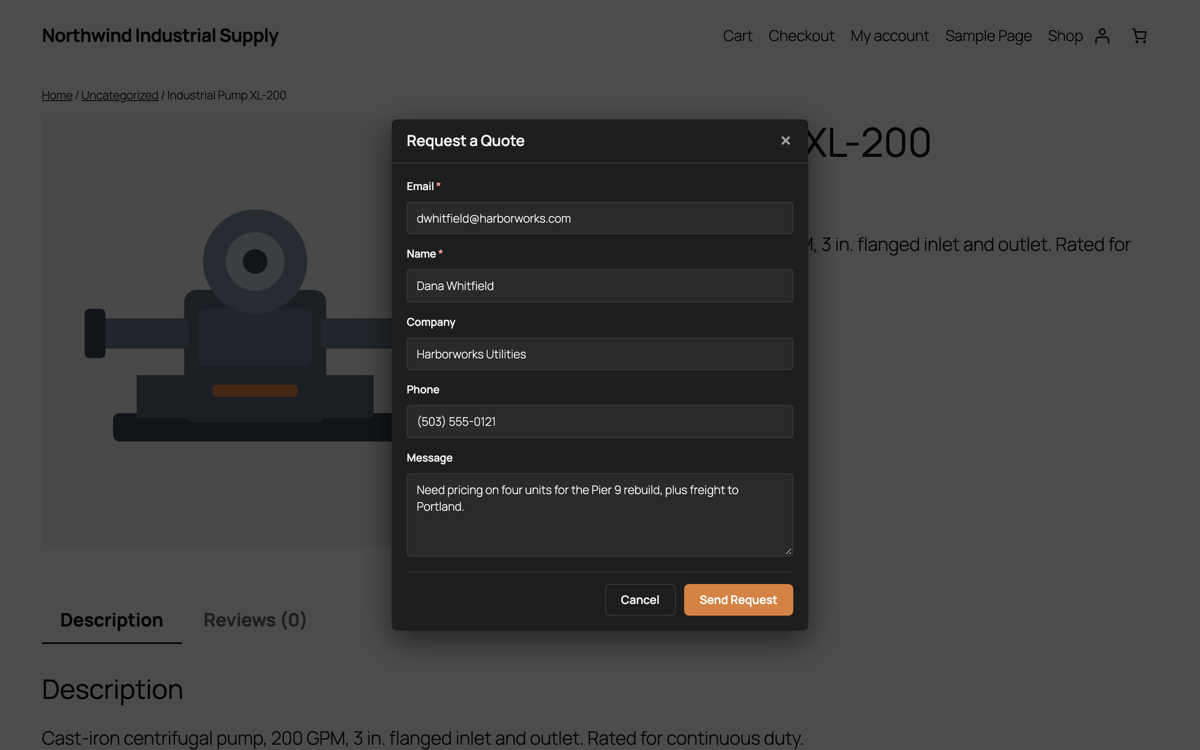
The form that opens
Anywhere else, with a shortcode
Drop [quotilio_request_quote] into a page, a template or a page-builder widget. Useful on a landing page for a product range, or in a sidebar beside a spec sheet.
What happens when someone clicks it
No redirect, no separate landing page, no theme surgery.
A form opens over the page
Name, email, company, phone and message. The buyer stays exactly where they were, looking at the product they asked about.
The request is saved to your site
It lands in WooCommerce → Quotilio Quotes with the line items attached. Your data stays in your own database.
Both sides get an email
You get the request at whichever address you choose, with reply-to set to the customer. They get a confirmation so they know it arrived.
Junk gets filtered out
A honeypot field, a rate limit and duplicate detection run before anything is stored, so the list stays worth reading.
Making it look like your store
It inherits your theme
The button uses your theme's own button styling, so on most stores it matches without you touching anything.
Keep Add to Cart, or don't
Leave both buttons and let the buyer choose. Or switch on catalog mode to hide prices and Add to Cart across the store, leaving Request a Quote as the only route. More on hiding prices.
It works where your store already works
Cart block and classic cart, and themes built on Elementor, Divi or Bricks. Needs WordPress 6.4, WooCommerce 8 and PHP 8.2 or newer.
Add the button in about five minutes
Install, choose where it shows, and take your first request today.
Or in WP Admin: Plugins → Add New → search “Quotilio”.